Hello everyone, in this tutorial I’ll back to basic about how to configuration DHCP Client/Server on Mikrotik Router. DHCP Client is use for Mikrotik request/get the ip address automaticly from ISP so we doesn’t manually configure.
Here’s the topology used.
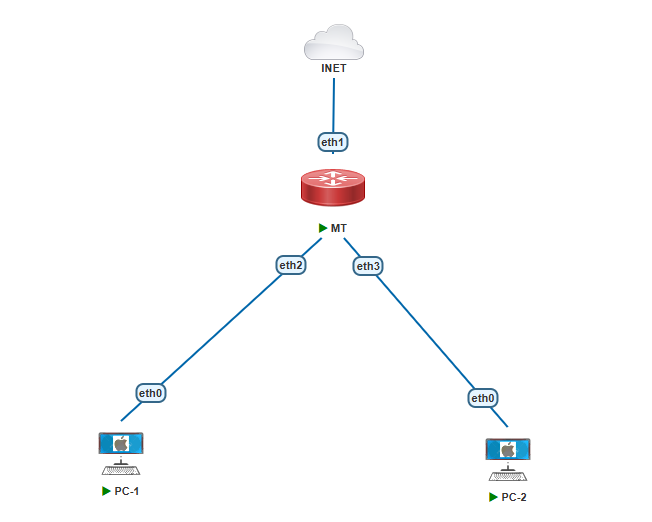
In this tutorial I’ll use Winbox 4.0.1.
First Configure the DHCP Client so that the Mikrotik Router get the IP Address from ISP.
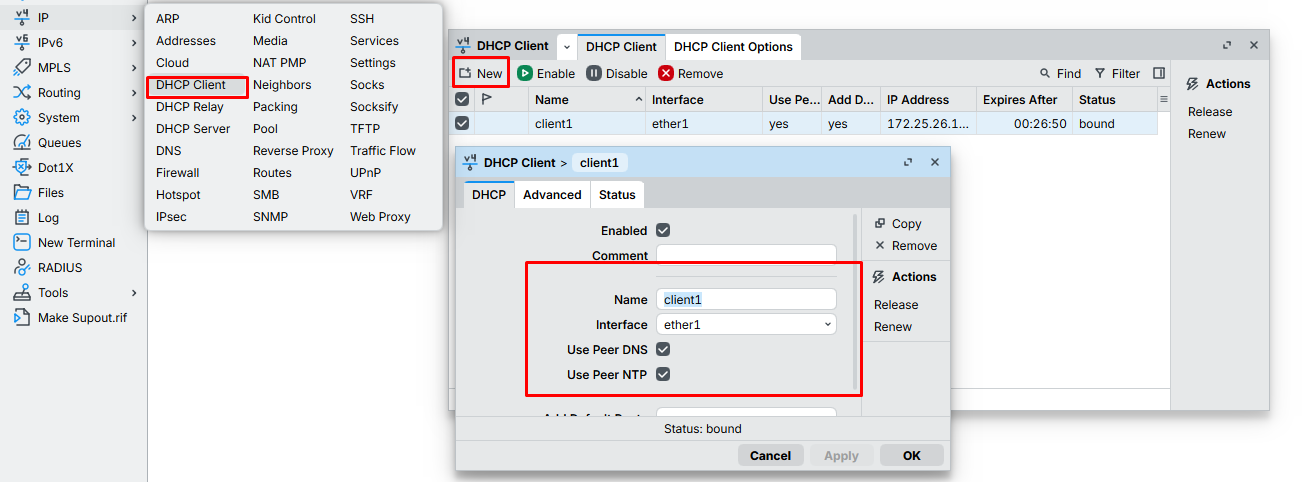
- Select IP > DHCP Client
- On DHCP Client section select New.
- You can configure Name for DHCP Client, Use Peer DNS and Use Peer NTP is prefer to Enable to get the DNS and NTP automatically
If DHCP Client success, you can see on Status is bound and on IP Address section is also appears the ip address from DHCP server/ISP
Don’t Forget to configure Firewall NAT so that the client behind the Mikrotik router can get internet connection.
- IP > Firewall > NAT
- New > Chain=src-nat | out-interface=ether1 | action=masquerade
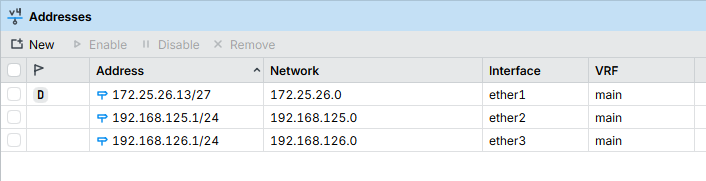
Then Configure IP Address on Interface ether2 and ether3 first before you configure the DHCP Server.
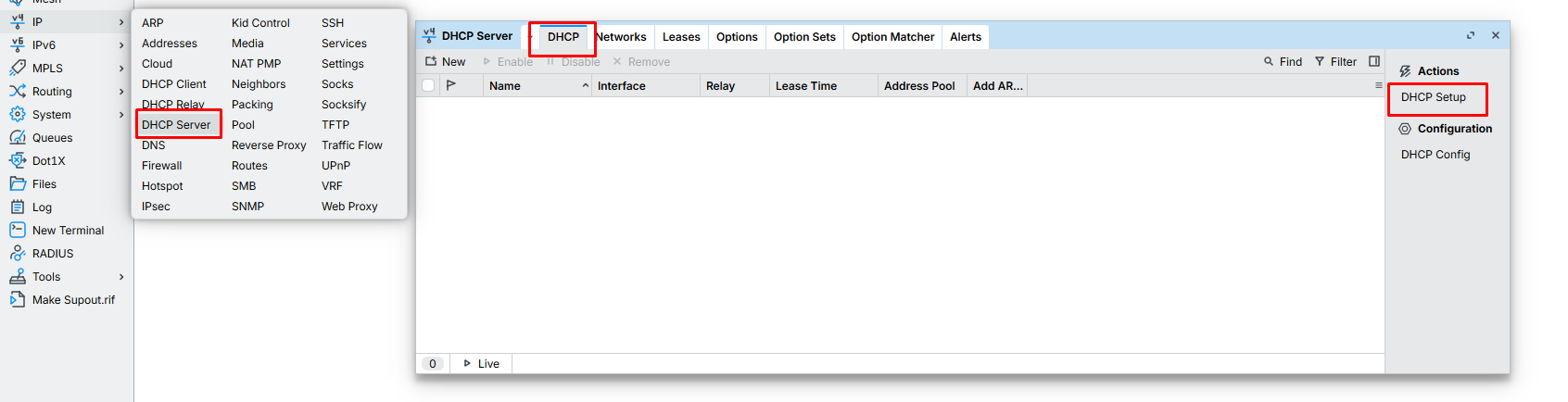
Configure DHCP Server on IP > DHCP Server > DHCP section
- Select DHCP Setup
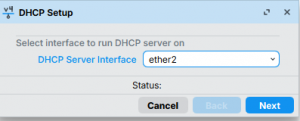
- DHCP Server Interface : Interface that will run dhcp server (ether2 & ether3)
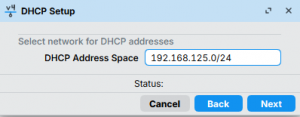
- DHCP Address Space : is automatically if you have configure the IP address on that interfaces.
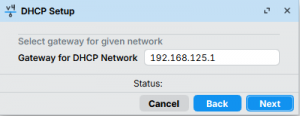
- Gateway for DHCP Network : is automatically if you have configure the IP address on that interfaces.
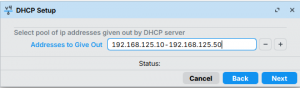
- Address to Give Out (DHCP Pool) : you can specify the range of ip that allow to used for the clients.
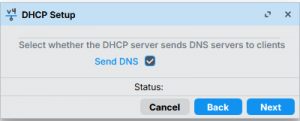
- Send DNS : Checklist so that the client can get the IP DNS Automatically.
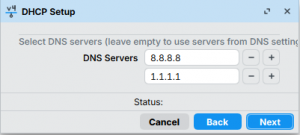
- DNS Servers : IP DNS Server for client (is automatic based on DNS server IP used in Mikrotik)
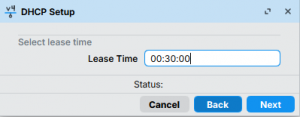
- Lease Time : you can specify how long users can use ip address leases before request the new ip addresss.
Configure DHCP Server for interface ether3 also.
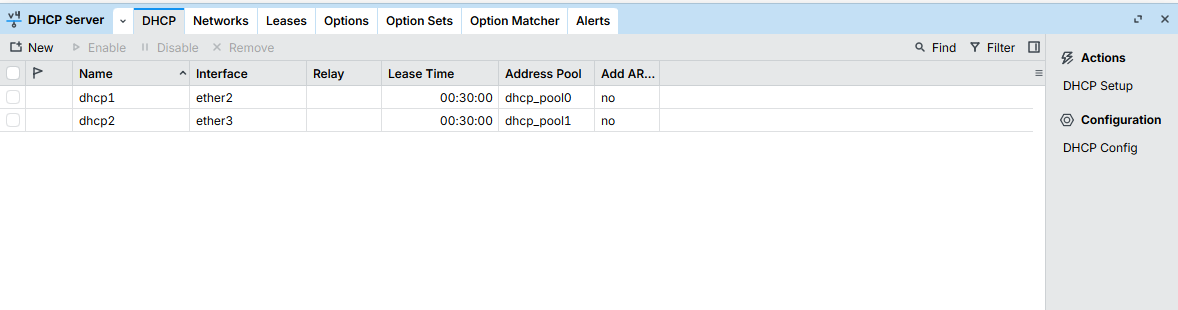
After that, testing the clients
Configure dhcp on PC-1
VPCS> ip dhcp
DORA IP 192.168.125.50/24 GW 192.168.125.1
VPCS>
Configure dhcp on PC-2
VPCS> ip dhcp
DORA IP 192.168.126.50/24 GW 192.168.126.1
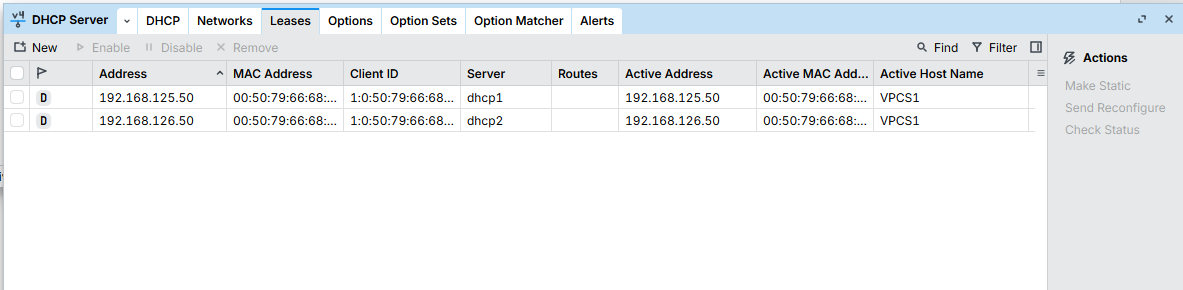
VPCS>
as the shown above, for the PC1 and PC2 is successfull get ip dhcp from Mikrotik. Then you can monitor the leases on IP DHCP Leases section.