In This tutorial, I’ll Discuss about configuration IPSEC VPN Which useful to connect LAN network between sites over the WAN.
Here’s the topology used
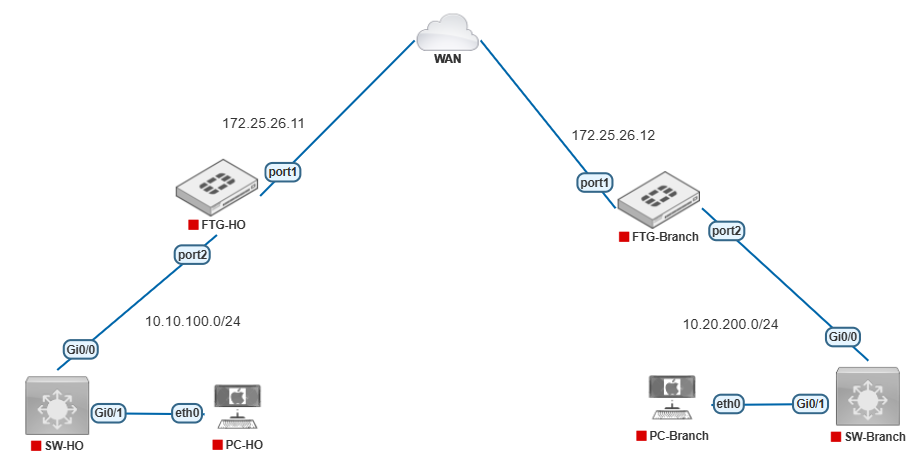
Based on the Topology above, we have two sites which HO and Branch. And we need to connecting local network between HO and Branch so the PC-HO and PC-Branch can be connecting each other.
Let’s configure on SW-HO and SW-Branch First
Switch(config)#hostname SW-HO
SW-HO(config)#vlan 100
SW-HO(config-vlan)#exit
SW-HO(config)#int g0/0
SW-HO(config-if)#switchport trunk encapsulation dot1q
SW-HO(config-if)#switchport mode trunk
SW-HO(config-if)#exit
SW-HO(config)#int g0/1
SW-HO(config-if)#switchport mode access
SW-HO(config-if)#switchport access vlan 100
SW-HO(config-if)#exit
SW-HO(config)#
Switch(config)#hostname SW-Branch SW-Branch(config)#vlan 50 SW-Branch(config-vlan)#exit SW-Branch(config)#int g0/0 SW-Branch(config-if)#switchport trunk encapsulation dot1q SW-Branch(config-if)#switchport mode trunk SW-Branch(config-if)#exit SW-Branch(config)#int g0/1 SW-Branch(config-if)#switchport mode access SW-Branch(config-if)#switchport access vlan 50 SW-Branch(config-if)#exit
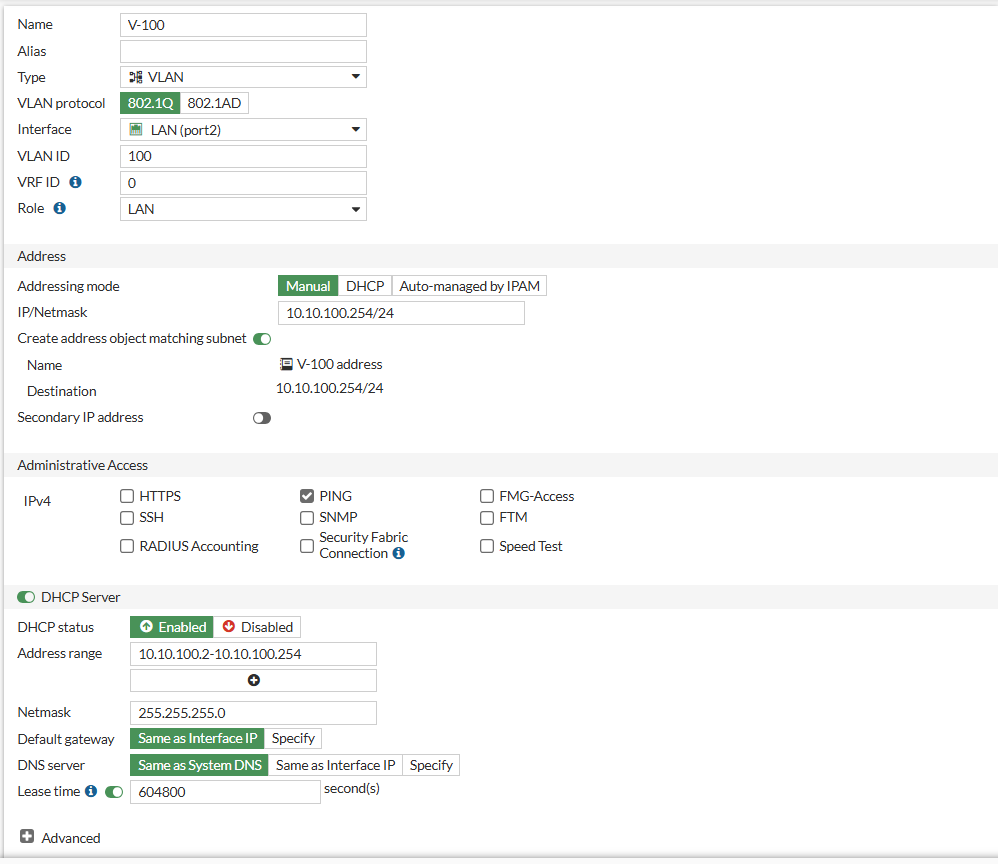
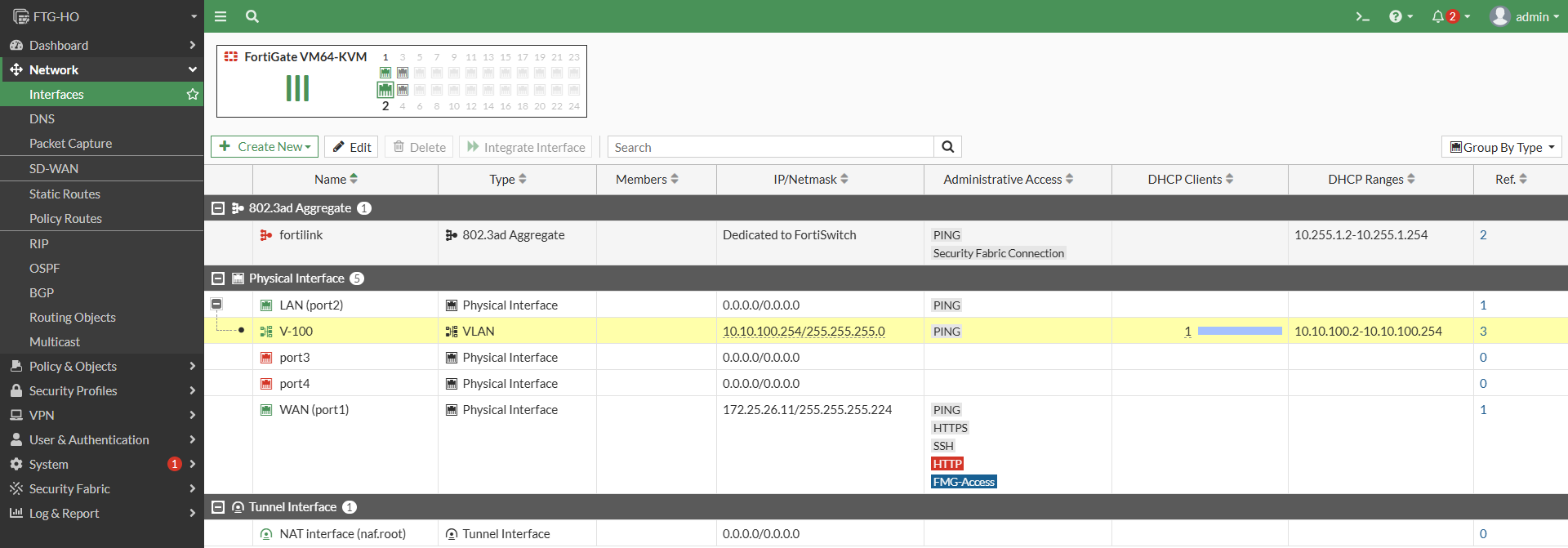
Configure Interface VLAN 100 on FTG-HO, Activate the DHCP Server on this interface.
Don’t forget to configure NAT for VLAN100 so that the local network can be connected to internet.
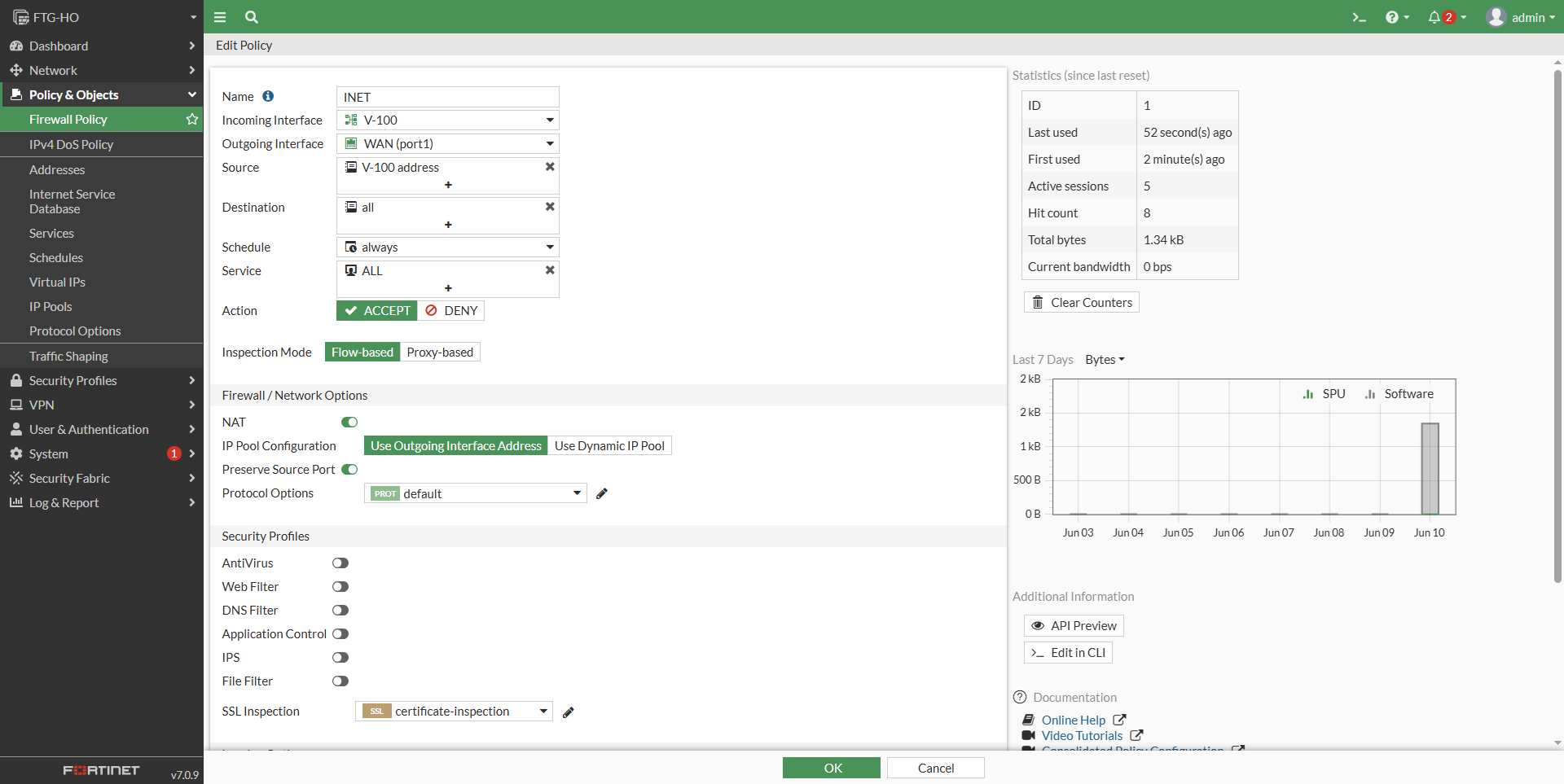
Also Configure it on FTG-Branch. on the branch we use VLAN50.
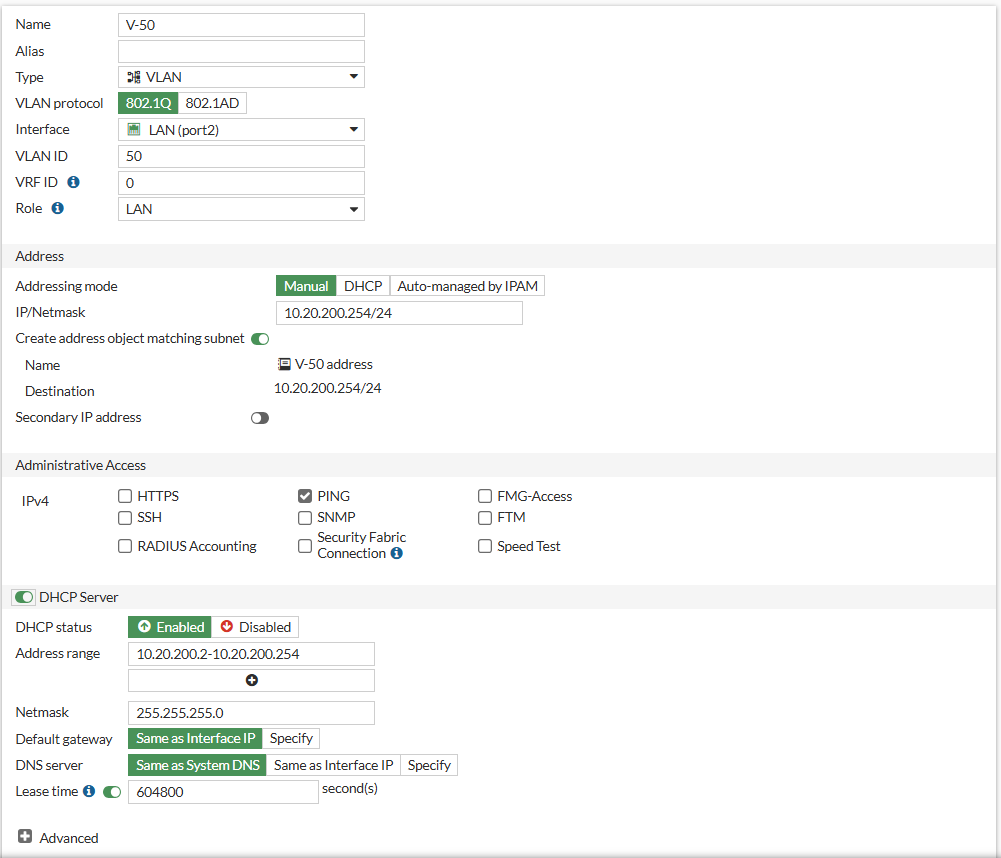
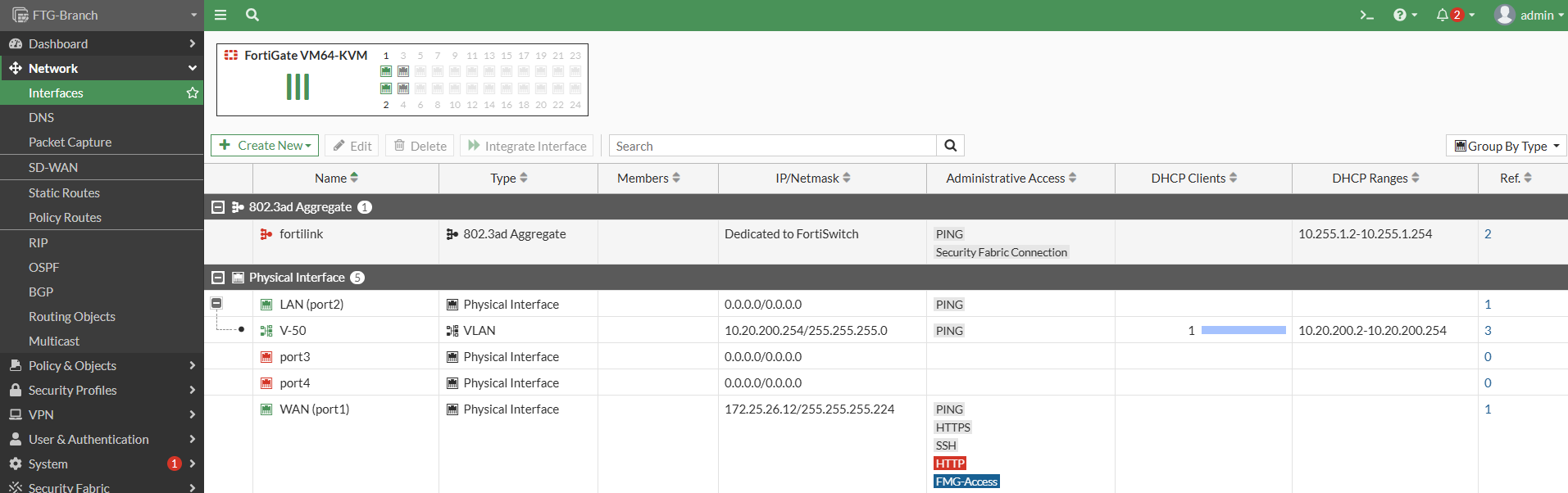
Now Let’s configure IPSec VPN between HO and Branch. Configure IPSec VPN on FTG-HO first.
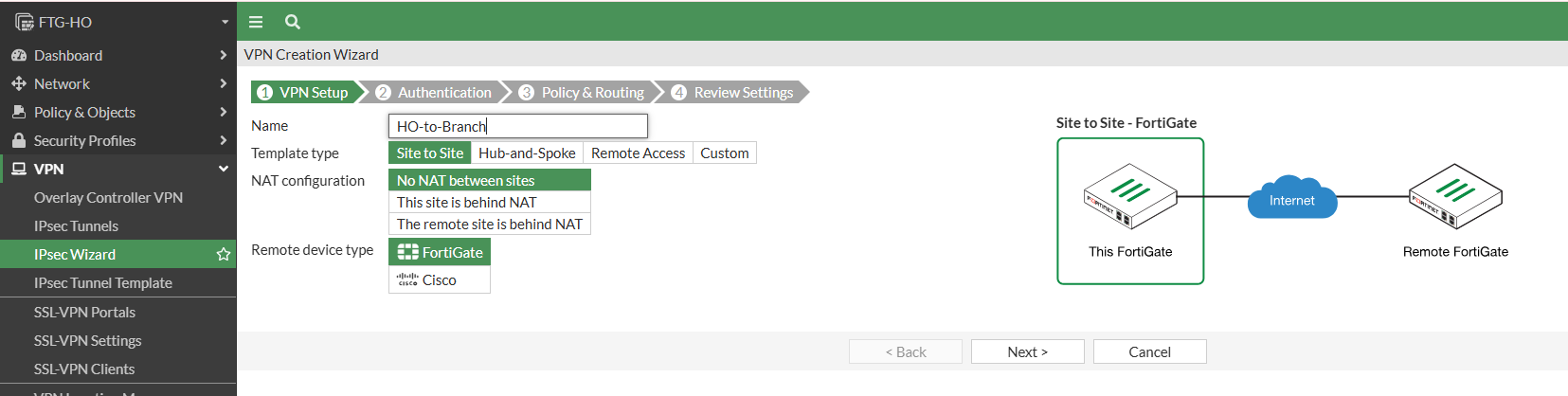
Select VPN > IPsec Wizard, Enter the Custom Name for VPN name, use template type Site to Site and don’t activate NAT.
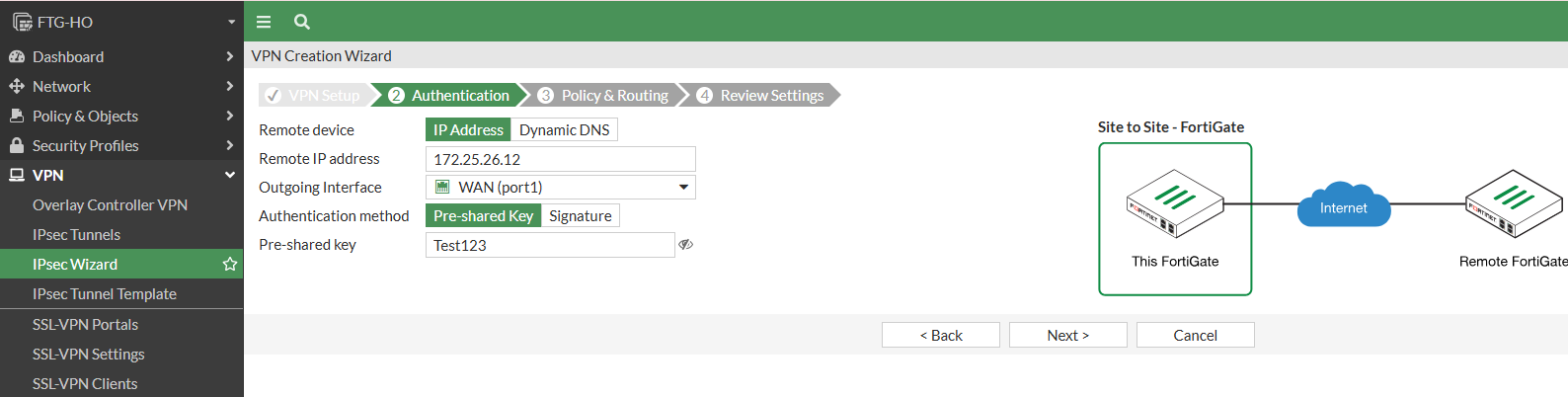
Authentication Setting, enter remote wan ip for FTG-Branch, Outgoing interface select WAN interface and then we use Pre-share key for the authentication.
On the Policy & Routing, Select VLAN 100 for local interface, then enter the remote subnet which is the branch local subnet.
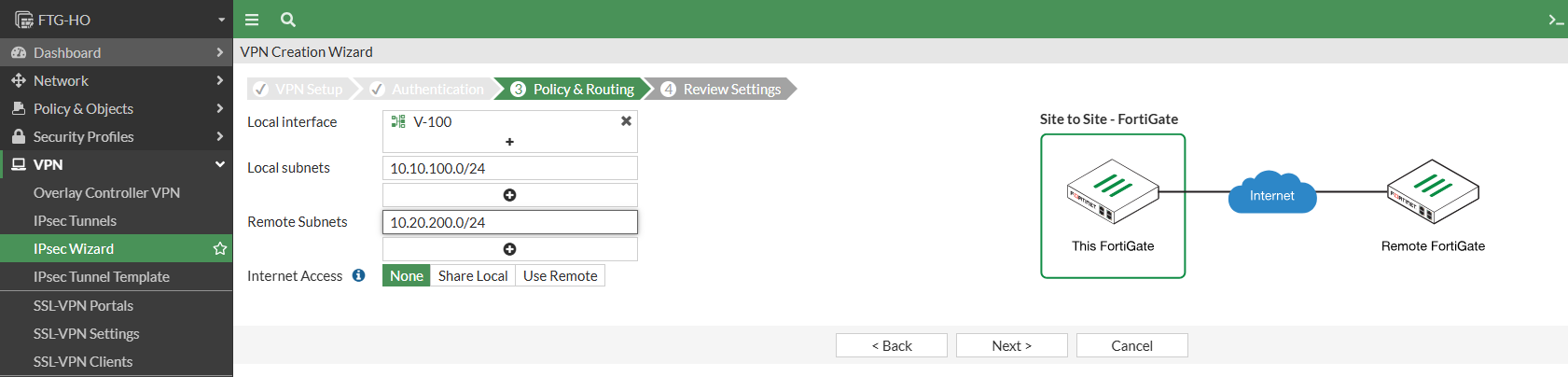
Then Select Create to complete the VPN Setup.
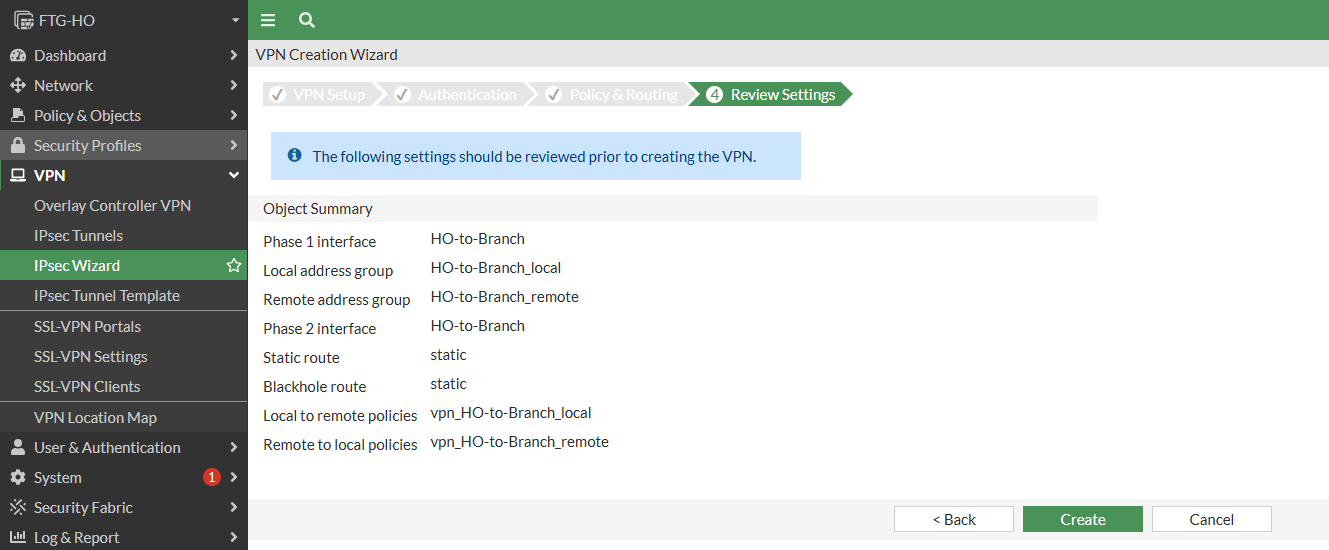
VPN has been Setup on FTG-HO, as you can see below the VPN is not up yet. we need to configure IP Sec on FTG-Branch.
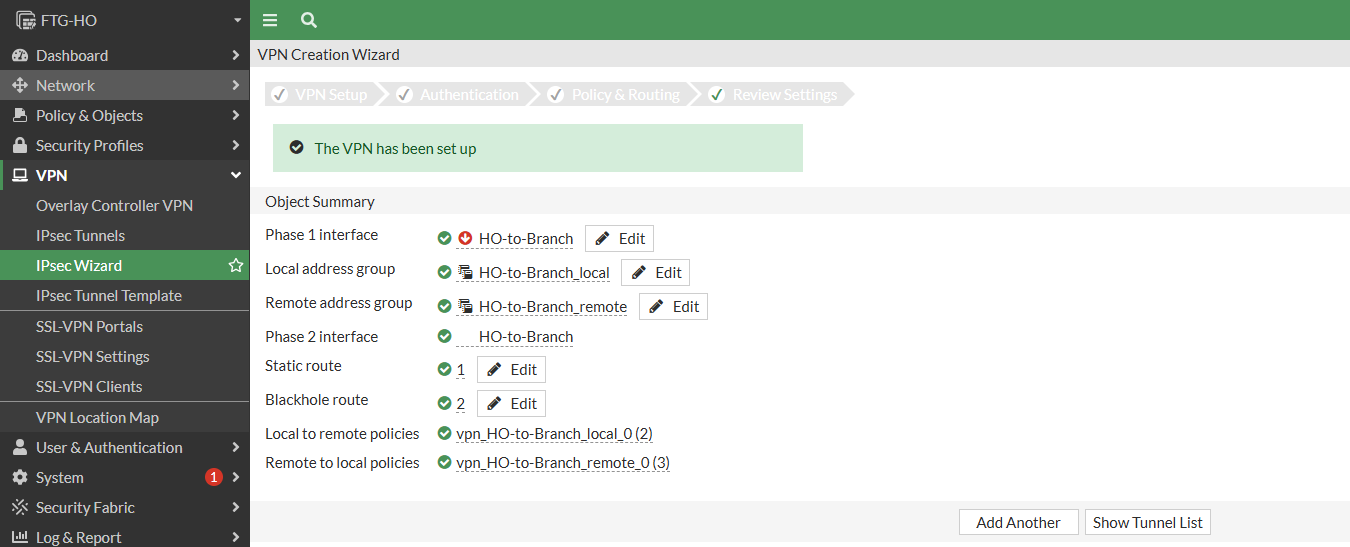

Configure IPSec VPN on FTG-Branch.
Select VPN > IPsec Wizard, Enter the Custom Name for VPN name, use template type Site to Site and don’t activate NAT.
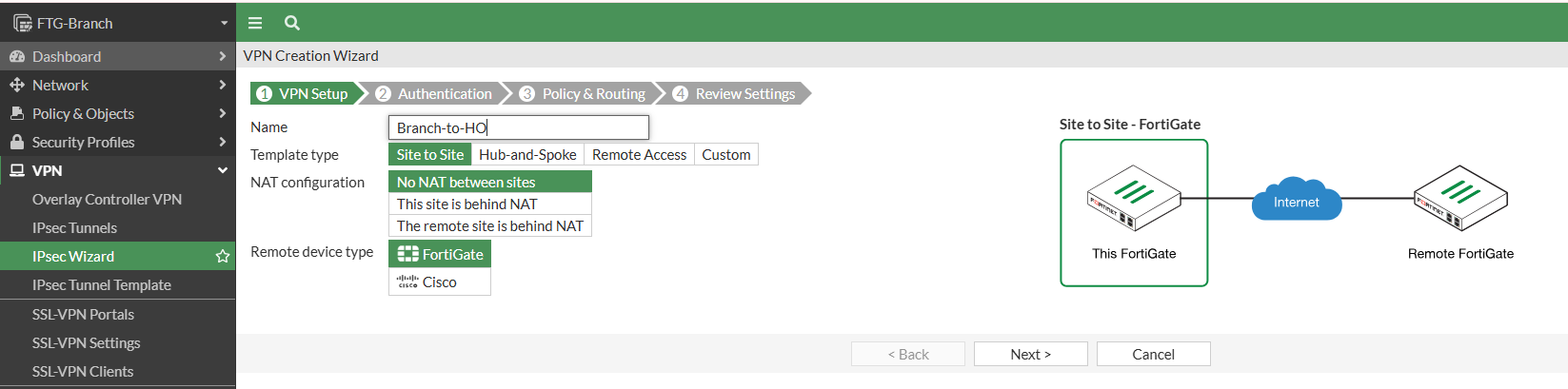
On Authentication Setting, enter remote wan ip for FTG-HO, Outgoing interface select WAN interface and then we use Pre-share key for the authentication.
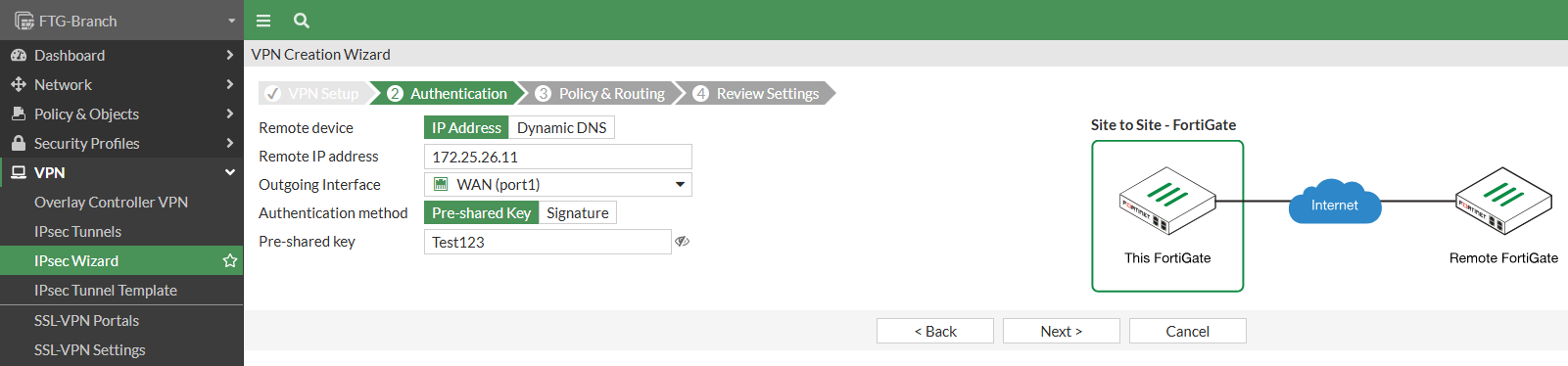
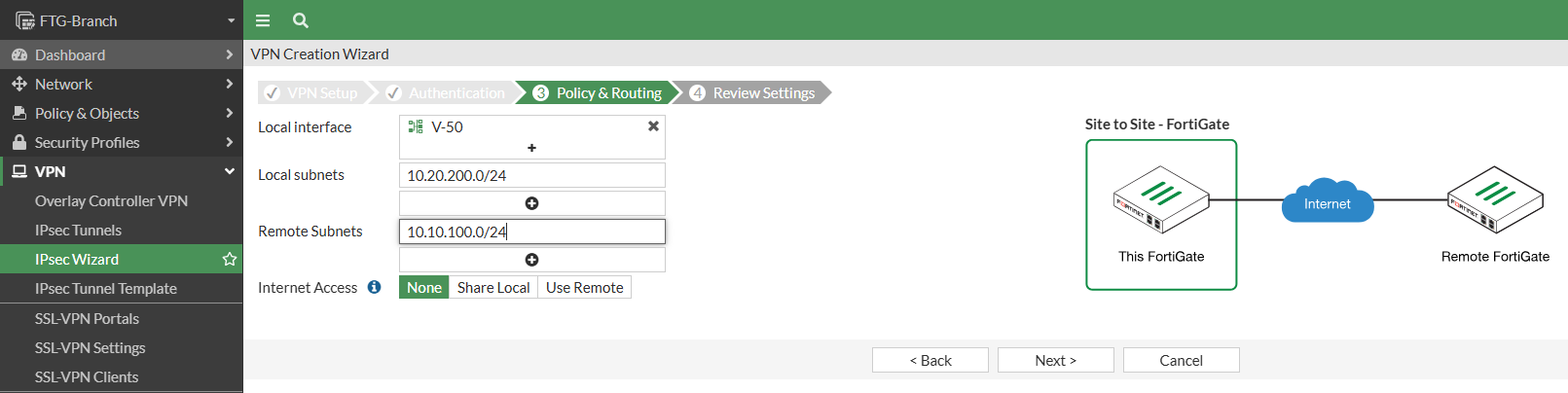
On the Policy & Routing, Select VLAN 50for local interface, then enter the remote subnet which is the HO local subnet.
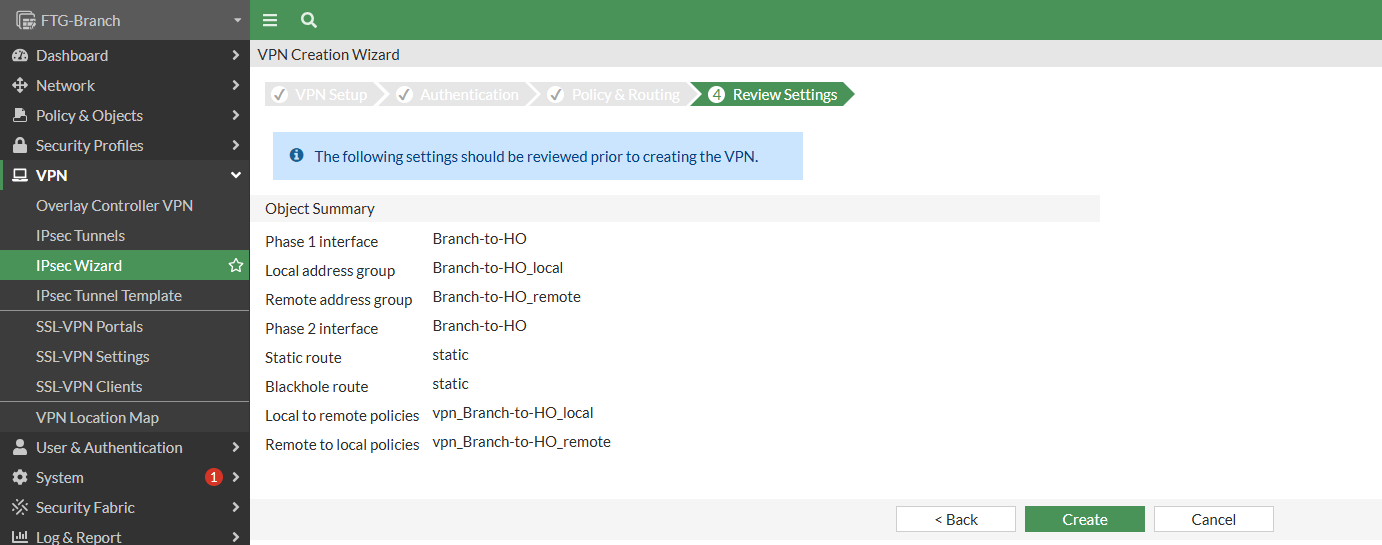
Then Select Create to complete the VPN Setup.
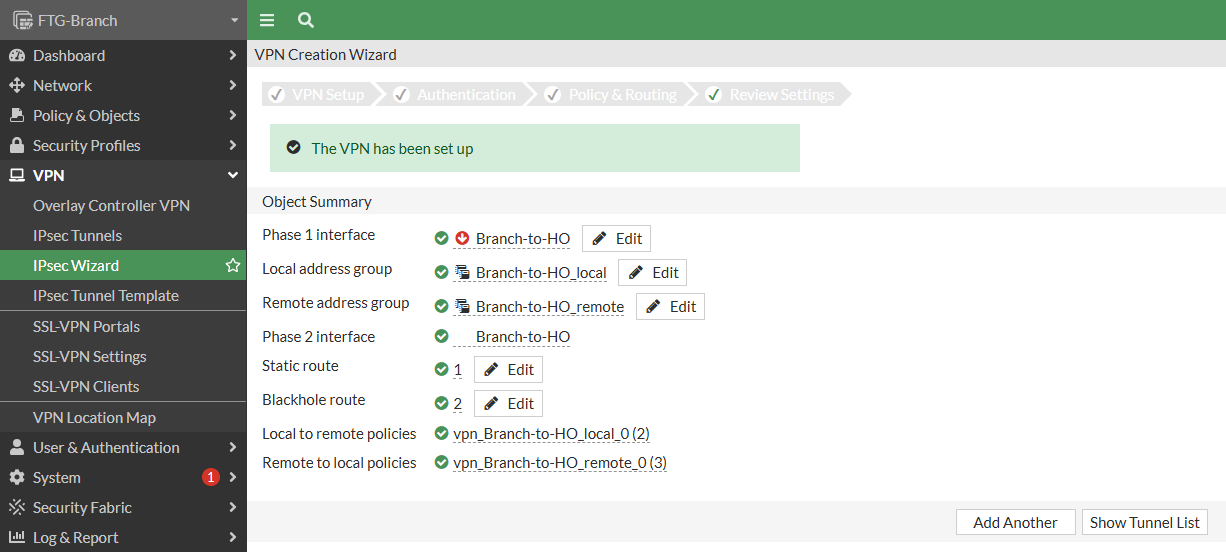
As we can see the IPSec VPN on FTG-Branch is already configured, but the VPN still down.

To resolve the issue, access the FTG-HO, navigate to IPsec Tunnels, and select the HO-to-Branch tunnel. Then, open the Status section as shown in the image below

Move cursor to Tunnel HO-to-Branch to show the VPN Status. as shown below Phase 1 is UP but Phase 2 Tunnel is doesn’t up yet.
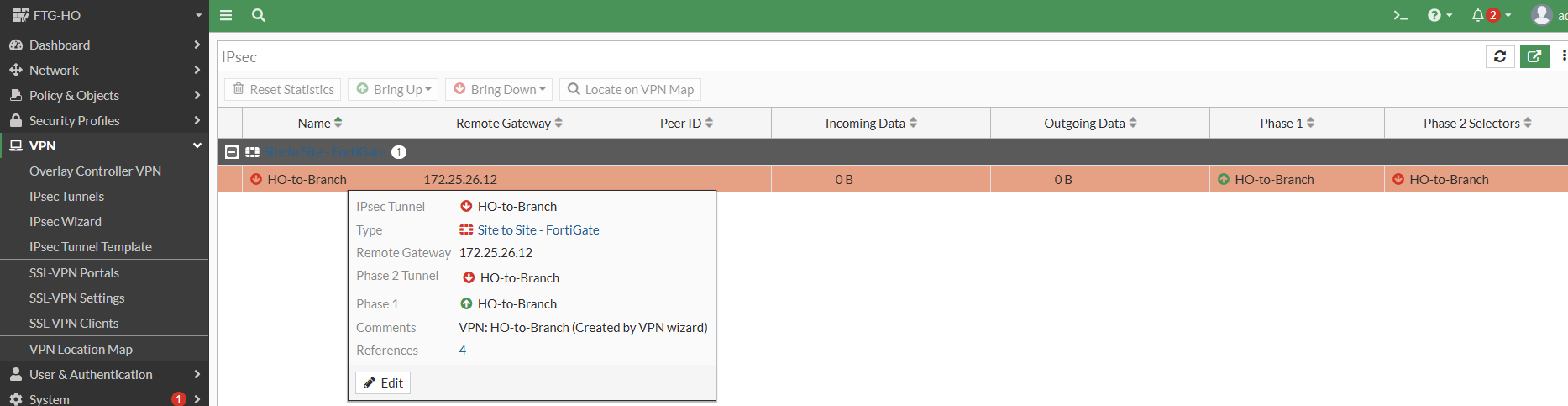
To Trigger the IPSec Tunnel, select the tunnel, Bring Up > then click All Phase 2 selectors or Phase 2 Selecor.

After that look at the IPsec status on FTG-HO and FTG-Branch is already UP.


Then, do a ping test between PC-HO and PC-Branch. as you can see below the connection between sites is successfull.
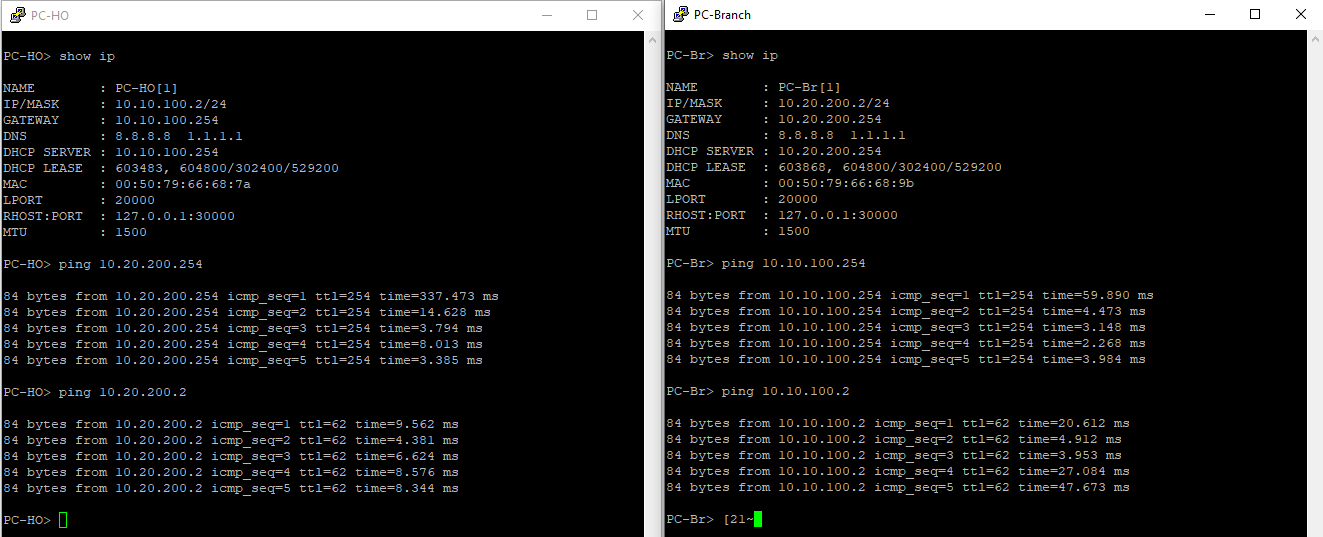
Monitor on IPsec status you can see the different that incoming and Outgoing Data is updated. This indicated that traffic is being forward through the tunnel between HO and the Branch.

