RoMON (Router Management Overlay Network) is a Layer-2 Mikrotik Discovery Protocol. RoMON is a Mikrotik Proprietary protocol that use for manage and configure multiple Mikrotik devices remotely via WinBox even the Mikrotik is Behind the NAT.
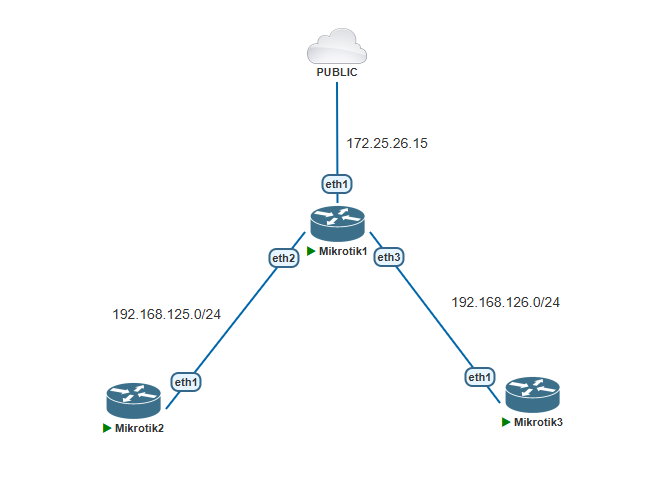
Here’s the topology used. Assumse that we will to access via public network and we can access the Mikrotik-1 because it’s directly connected to public network. But we can’t access Mikrotik-2 and Mikrotik-3 directly. So use the RoMON feature we can access the Mikrotik-2 and Mikrotik-3 via RoMON using the Mikrotik-1 connection.
Configure RoMON on Mikrotik-1 via CLI
[admin@Mikrotik-1] > tool/romon/set enabled=yes
Configure RoMON on Mikrotik-2 via CLI
[admin@Mikrotik-2] > tool/romon/set enabled=yes
Configure RoMON on Mikrotik-3 via CLI
[admin@Mikrotik-3] > tool/romon/set enabled=yes
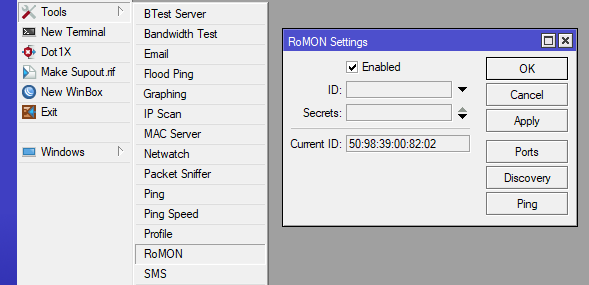
To Configuration RoMON via GUI select Tools > RoMON > Enabled
After that, testing the connection via winbox.
Connect to Mikrotik-1 IP, Login with correct username and password. Afterthat Submit Connect To RoMON.
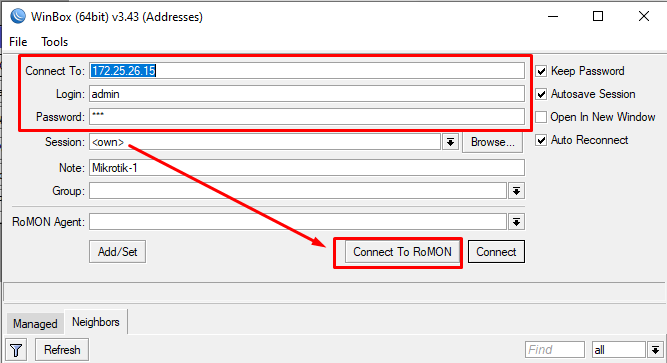
Look at on the RoMON Neighbors section, you can see the Mikrotik that has enabled RoMON feature.
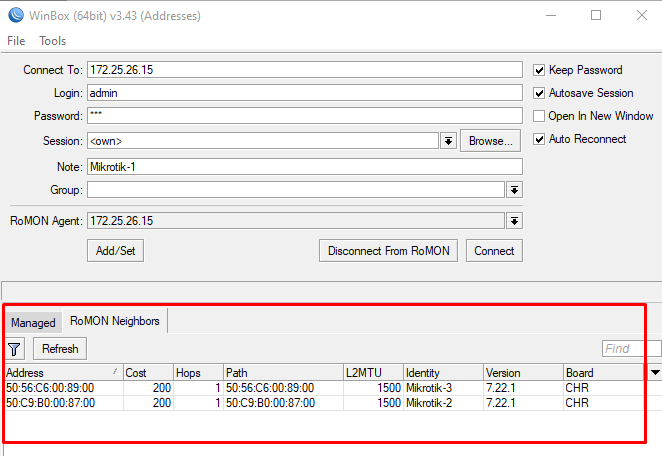
Select the Mikrotik that will be connect, then select Connect button.
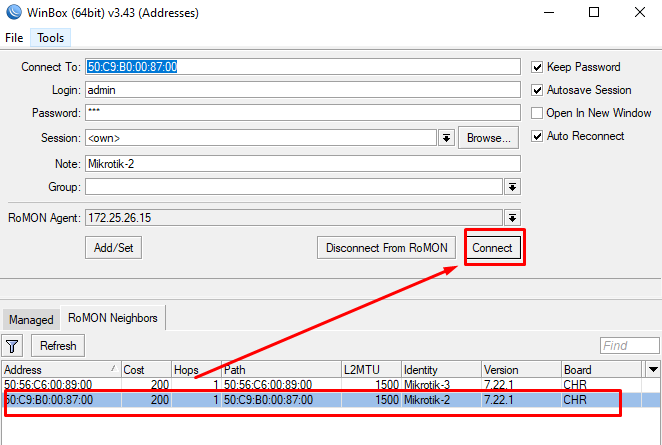
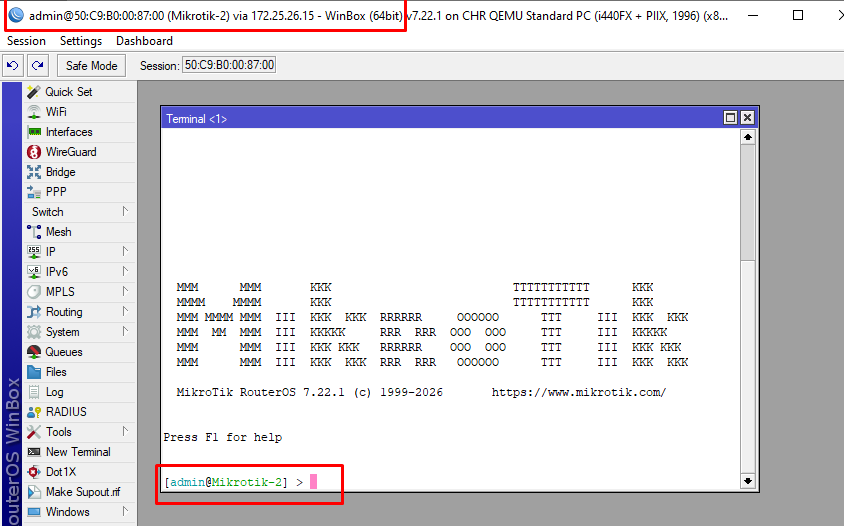
Remote login on Mikrotik-2 is successfull via RoMON. you can try on another Mikrotik routers